Adding Fees to Transactions
There may be times when you wish to add a percentage of the amount due to a transaction. These percentages can be used for many functions.
We do not endorse the below for charging credit card fees, as it could violate your processor and card brand rules. As it stands now, using this functionality to offset your merchant processing costs is not in compliance with card brand rules, as the fee is not sent as a separate line item transmitted to the processor. Additionally, you are only allowed to add a fee, called a "surcharge" to credit card transactions. Debit transactions, even if they are "run as credit" can never have a fee or "surcharge". Unless the fee is added to EVERY transaction, paid with cash, card or other. These are "service fees" added to every sale - which does not violate card brand rules. Please check with your Processor first before implementing.
If you are using integrated processing with a processor that supports surcharge, StoreTender's EMV integration does allow for surcharging Credit transactions (only), up to 3% maximum. To learn more about this, contact us.
Update (09/26): We are currently in development to provide a Dual Pricing option, for use with our integrated merchant processing. When this is released we will provide email notification to all clients, including steps to sign up.
There are three POS functions that can be selected in the Screen Designer (Setup > Store > Other > Screens):
- Percent of Subtotal - function [191] - calculates the percentage based on the subtotal (before tax).
- Percent of Total - function [192] - calculates the percentage based on the total (after tax).
- Percent of Balance Due - function [193] - calculates the percentage based on the last amount due.
To use these functions, you must create the following:
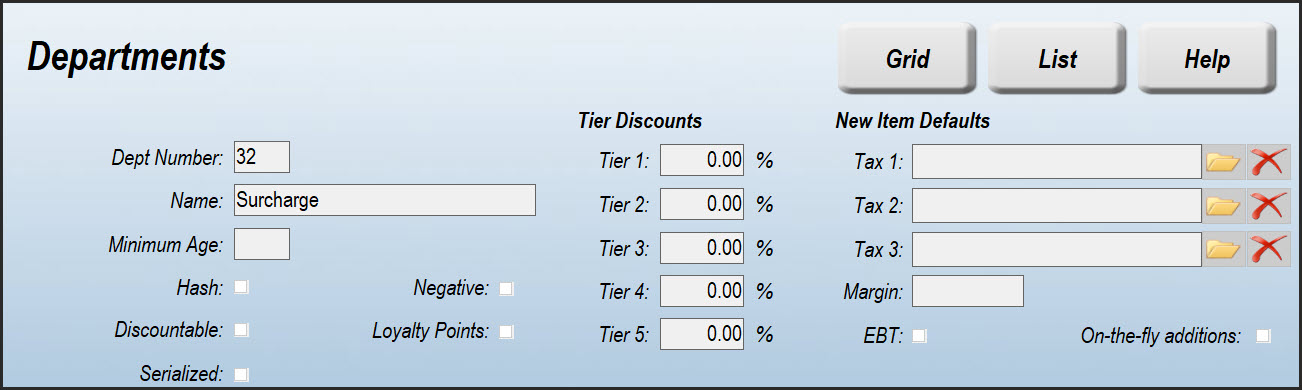
Step 1: Create or Select a Department
To track your Percentage Fees, you should either create or select a Department for tracking purposes. Below is an example.
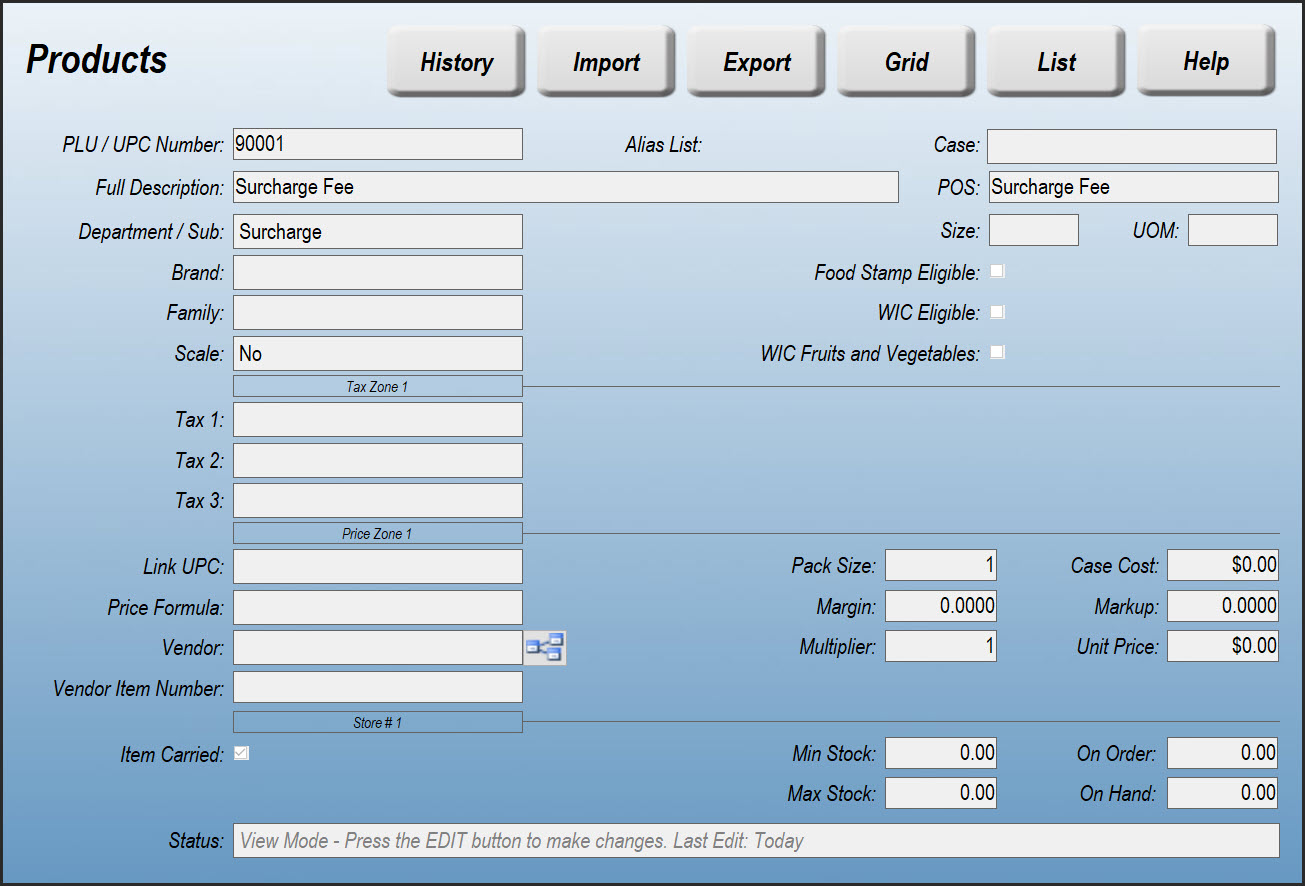
Step 2: Create a Fee Product
Navigate to the Products screen (Data > Inventory > Products) to create a new Product for your Fee. There is no need to enter a price or cost. You may name it however you wish.
Step 3: Configure your POS Screen
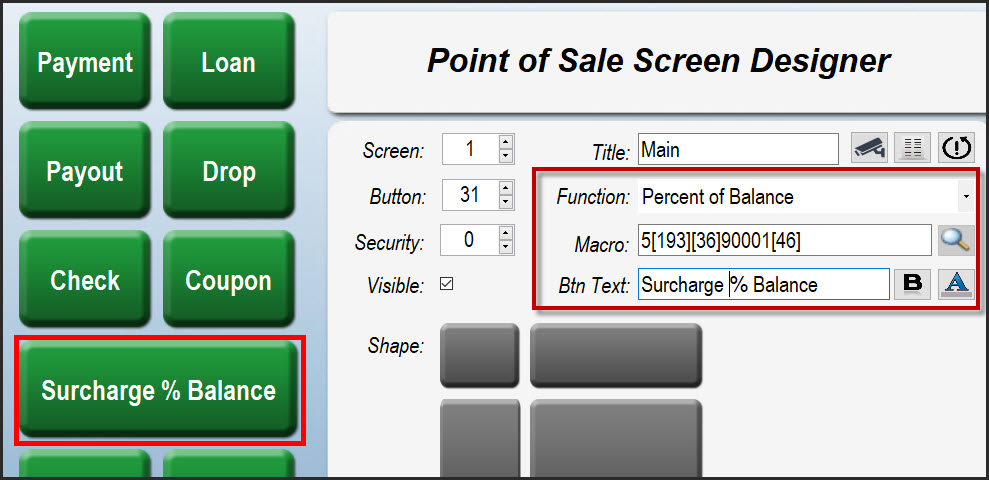
Navigate to the Screen Designer (Setup > Store > Other > Screens).
Create a button using the Percent of Amount Due (or any other "Percent of") function.
This will add the function [191], [192] or [193] to the Macro field, depending on which function you chose. You must now edit the field manually.
In the example below, we're setting up a 5% "surcharge fee" of the Balance Due [193]. The percentage amount (5) is the first number on the Macro line, before the [193] function.
After [193] is [36]. This denotes a price override of the PLU that you created above.
Following the [36] is the PLU number of the Fee Product we created earlier.
Finally, the Macro ends in [46], which is the PLU function.
MACRO: 5[193][36]90001[46]
Percentage to be calculated 5 Percentage of Balance Function [193] Price Override Function [36] Surcharge PLU 90001 PLU Function [46]
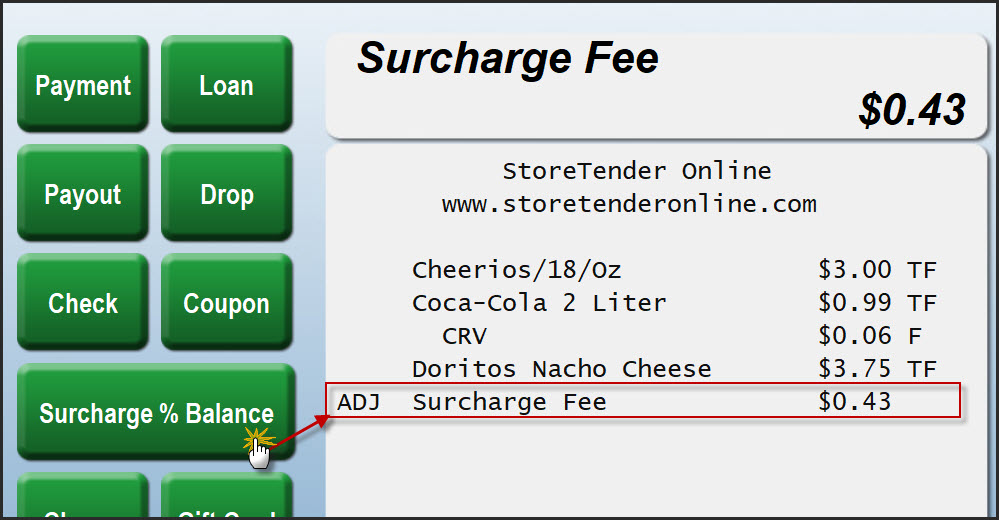
Step 4: Point of Sale Transaction
Now that you've completed the setup, SYNC your POS to accept the changes. In the example below, the Fee was added to the transaction.